Dynamic page content using Google Tag Manager
Here’s an interesting application for Google Tag Manager: as a marketer, I need to quickly change page content in order to tweak messaging, specially regarding landing pages for our ads, in order to target the right message at the right buyer persona. That would be ok if I had a CMS backing my company’s website, but that isn’t the case. I’m 12:30 hours behind the Engineering team, which means that after I submit a request for a change on the website, they have to make time on their sprint, code the change, test, approve and then push to prod. Sometimes, I have to approve it myself, which means that’ll take one more day for it to get deployed.
Not a very smart way to work on quick and easy, sometimes purely text changes.
I needed something that I could do myself and do it quickly. We tried transferring the website control to me, which did help temporarily, but I had to let go at one point while they worked on a major redesign. Then one day, while doing some research on a Google Analytics feature, I found this neat little tool that would allow me all the control I needed.
What is Google Tag Manager
I won’t dwell too much on it. Suffice to say, it’s a neat little free tool from Google (probably in Beta, because Google) where you can, among other things, configure scripts to be fired on your website based on specific triggers, all from a GUI dashboard. It’s powerful, yet very easy to work with. Even the debugging is great. Google has a nice video which showcases basic usage. Also, CSS-Tricks wrote a nice article about setting it up. You should definitely check them out if you’ve never worked with GTM.
Now to the fun stuff.
Configuring GTM
For my first test, I decided to use our new free product (a data repo for public datasets), which we needed to link to our paid offers. We could sprinkle some generic messages around, but let’s be a bit smarter and target a lead’s specific use case.
In our product, filtering a list of datasets means a new URL gets generated, so we can look at the URL and know exactly what type of datasets you’re looking at. From there, we can select a message to be displayed that is more likely to resonate with you. If you set the filter for retail data, we’ll display a message regarding a retail-related project. Same thing for HR, telecom, insurance etc, pretty much like a smart ad. That makes much more sense than a generic “Let us help you with your project.”
Yes, I could ask engineering to implement that through php, but then I wouldn’t be able to make quick edits whenever I wanted. GTM gave much more flexibility to do that, with a relatively simple flow:
- ask engineering to set up a hidden, blank and already styled div on the template page I wanted to serve the ad to. It’s a one-time set up, so I wouldn’t be consuming their time with my requests going forward;
- on GTM, set up a trigger depending on the page URL, so it fires only on filtered pages (they always start with
/dataset?); - set up a variable to parse the URL parameter;
- set up a tag with a
switch caseto cover all use cases, or one tag for each use case (I’m going with the former); - high-five yourself for slashing the necessary time and effort by a lot.
The <div>
Sketch something and send it over to engineering with some clear instructions:
- it’s a
position: fixedblock; - we’ll be using text only, so no need to worry about images;
- make sure the
line-heightis good enough for wrapping lines; - (IMPORTANT) should be
display: noneby default; - (IMPORTANT) should have a unique
idorclass(in our case, it’s.right-sidebar);

Once this is done, we can start playing with it.
The trigger
The trigger is a simple “Fire on: Page URL contains /dataset?”
(If you don’t see Page URL as a variable, you have to enable it under the “Variables” tab).
The variable
Create a new URL type variable and configure it as “Query” type. The query key should be whatever URL parameter you use for the filter. For this example, let’s make it “extras_Domain”. Let’s call this var “domainFilter”
Note that you can also use utm parameters here. That gives you even more flexibility when thinking about messaging for your ads, since you can link your ad and landing page copies in a much better way.
The tag
Create a new “Custom HTML tag” and add the switch domainFilter (don’t forget the <script> tags), making each case a filter parameter. Then, target the block’s unique id or class and change whatever header/p text you want there. Don’t forget to change the display rule to block.
If you want to properly track this, It might be a good idea to also change whatever URL you have on the CTA (considering you have one inside the block) through the jQuery .attr() method. Append whatever utm parameter you want to properly track which CTA the user clicked on. For example:
<script>
  switch ({{domainFilter}}) {
    case 'retail':
		  $(".right-sidebar p").replaceWith("<p>We used some of these datasets to</h4>");
		  $(".right-sidebar h4").replaceWith("<h4>Determine top external risks that impact consolidated quarterly revenues of Macy's.</h4>");
		  $(".right-sidebar a").attr("href","https://www.crowdanalytix.com/observe-live-project?utm_source=datax&utm_medium=rhs-block&utm_term=retail&utm_content=determine%20top%20external%20risks%20that%20impact%20consolidated%20quarterly%20revenues%20of%20macys&utm_campaign=datax");
		  $(".right-sidebar").css("display","block");
      break;
  }

</script>
Et voilà:
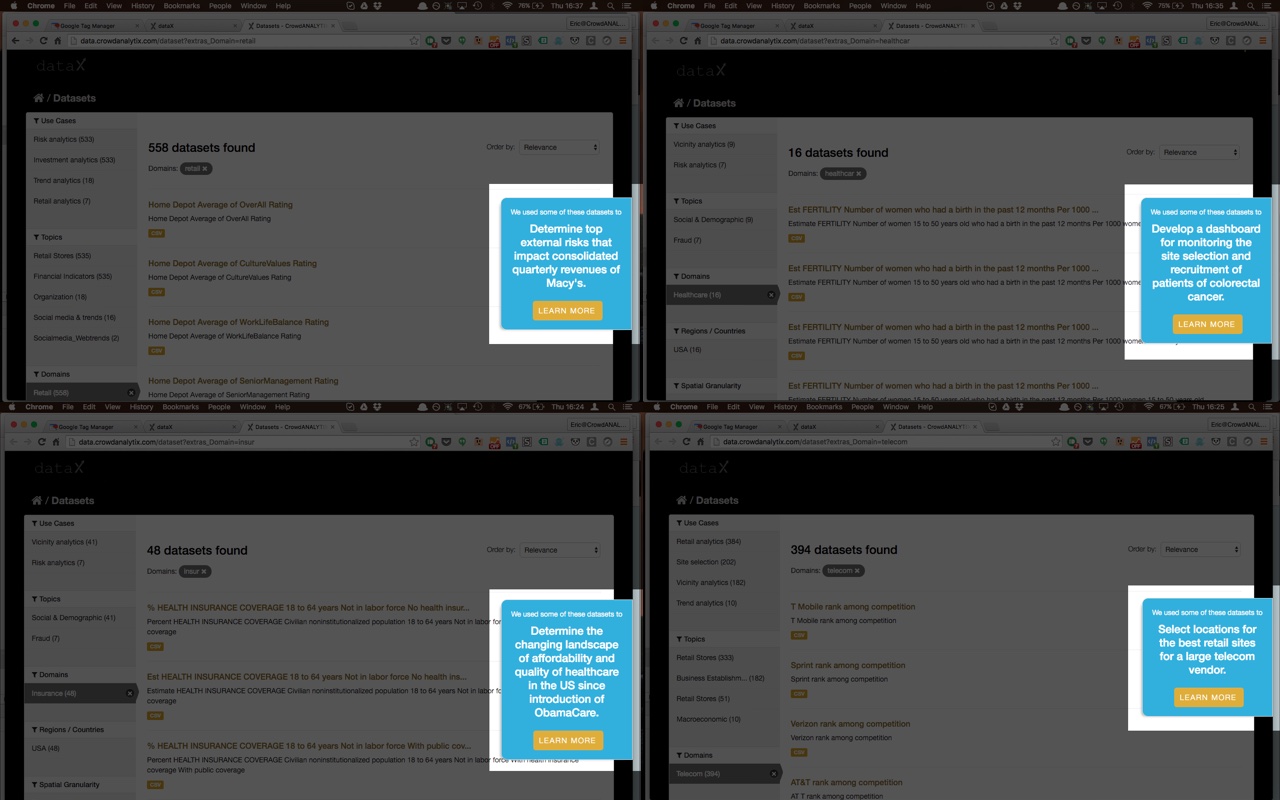
Now it’s much easier to make whatever changes you want to the text in less that 10 minutes.
A quick note on SEO
In the past, Google’s stance on dynamic generated content was a big “NO”. You would lose points if you did it and you would fall down to the forgotten valley that is the bottom of page 2. But that’s changed, and now Google can crawl and render javascript and will not penalize you for such dynamic content. They do have some restrictions regarding what’s behind a tab, but you also won’t get penalized for those. AJAX might be a different story, so I suggest doing some research before.
I couldn’t find anything on how Bing reacts to js. Apparently, they haven’t been very responsive. As for Yahoo, they’re powered by Bing, if you care about them too.
So now I can change/add messages as I see fit in a couple of minutes. It’s a small CMS-like feature that works well, it’s free, easy to set up and maintain and leaves more time for the Engineers to play some Jenga:
Cleaning data can be tiresome! Let's play Jenga 😜 @crowdanalytix_q pic.twitter.com/AVzMfhrL2N
— Jithesh (@vu3jej) December 24, 2015
You’re welcome, guys.